
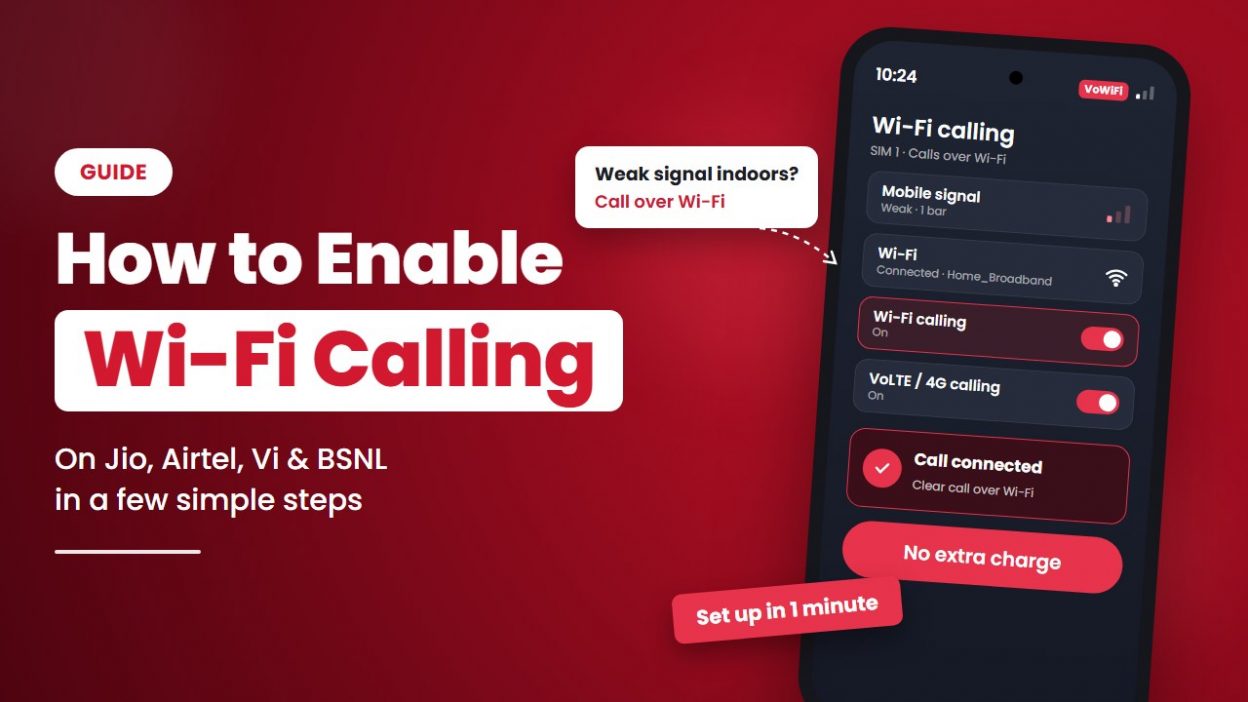
Have you ever tried making a call from your home or office, only to find that your phone has just one signal bar? The call keeps disconnecting, or the other person cannot hear your voice clearly.
- 1 What Is Wi-Fi Calling?
- 2 Is Wi-Fi Calling Free in India?
- 3 What Do You Need to Use Wi-Fi Calling?
- 4 How to Enable Wi-Fi Calling on Jio
- 5 How to Enable Wi-Fi Calling on Airtel
- 6 How to Enable Wi-Fi Calling on Vi (Vodafone Idea)
- 7 How to Enable Wi-Fi Calling on BSNL
- 8 How to Enable Wi-Fi Calling on Android Phones
- 9 How to Enable Wi-Fi Calling on iPhone
- 10 How to Check If Wi-Fi Calling Is Working
- 11 Wi-Fi Calling Not Working? 7 Ways to Fix It
- 12 Wi-Fi Calling vs VoLTE vs WhatsApp Calling: What’s the Difference?
- 13 Advantages and Disadvantages of Wi-Fi Calling
- 14 Is Wi-Fi Calling Useful for Businesses?
- 15 Conclusion
This usually happens in places where mobile signals are weak, such as basements, high-rise buildings, offices with thick walls, or rural areas.
But what if you could make clear phone calls using your Wi-Fi connection instead of depending on mobile network coverage?
That’s exactly what Wi-Fi calling allows you to do.
With Wi-Fi calling, you can make and receive regular phone calls using your existing mobile number and Wi-Fi connection. You don’t need to install another app or change your SIM card.
Major Indian telecom operators, including Jio, Airtel, Vi, and BSNL, support this feature.
In this guide, you’ll learn what Wi-Fi calling is, how it works, how to enable it on Android and iPhone, and how to fix common Wi-Fi calling problems.
What Is Wi-Fi Calling?
Wi-Fi calling is a feature that allows you to make and receive regular phone calls using a Wi-Fi network instead of relying only on mobile tower signals.
It is also known as VoWiFi (Voice over Wi-Fi).
For example, suppose you’re sitting in your office basement, where your phone barely receives a mobile signal. However, your office has a strong Wi-Fi connection.
If Wi-Fi calling is enabled on your phone, you can make and receive calls through that Wi-Fi connection, even when your mobile signal is weak.
The best part is that you don’t need a separate application or phone number.
Here’s what makes Wi-Fi calling different from WhatsApp or other internet calling apps:
- Use your regular phone number: You can make and receive calls using your existing mobile number.
- No additional app required: Calls are made directly from your phone’s normal dialer.
- The other person doesn’t need Wi-Fi: They can receive your call through their regular mobile network.
- Call mobile and landline numbers: You can call regular phone numbers in India, including landlines.
How Does Wi-Fi Calling Work?
Wi-Fi calling works by sending your voice calls through a Wi-Fi internet connection.
When you make a call, your phone checks whether it can use the available mobile network or Wi-Fi calling service.
If the mobile signal is weak and Wi-Fi calling is available, your phone can use Wi-Fi to connect the call.
For example:
- Strong mobile signal: Your phone may use the regular mobile network.
- Weak mobile signal with good Wi-Fi: Your phone may connect the call through Wi-Fi.
- No mobile signal but working Wi-Fi: Wi-Fi calling may still work if your phone and operator support it.
You usually don’t need to select Wi-Fi manually for every call. Your phone manages the connection based on its settings and network availability.
When Wi-Fi calling is active, your phone may display a Wi-Fi calling icon or VoWiFi symbol near the network signal indicator.
Is Wi-Fi Calling Free in India?
Yes. Jio, Airtel, Vi, and BSNL generally offer Wi-Fi calling without additional service charges.
You can use Wi-Fi calling with your existing mobile recharge or postpaid plan.
For example, if your mobile plan includes unlimited domestic voice calls, eligible Wi-Fi calls are generally covered under the same plan.
However, remember these important points:
- An active mobile plan is required: Your SIM must have an active service plan that allows calling.
- Wi-Fi calling uses internet data: Calls use a small amount of data from your connected Wi-Fi network.
- International calling charges may apply: International calls are billed according to your operator’s applicable calling rates and plan.
Important: Wi-Fi calling may not have an additional service fee, but it does not automatically make every call free.
What Do You Need to Use Wi-Fi Calling?
Before enabling Wi-Fi calling, make sure your phone meets these basic requirements.
1. A Smartphone That Supports Wi-Fi Calling
Your smartphone must support Wi-Fi calling.
Most modern Android smartphones and iPhones include this feature, but support may vary depending on the phone model, software version, and telecom operator.
2. An Active SIM Card
You need an active SIM card from a mobile operator that supports Wi-Fi calling.
In India, major operators offering this service include Jio, Airtel, Vi, and BSNL.
3. VoLTE Enabled on Your Phone
Some phones and operators require VoLTE, also called 4G Calling, to be enabled for Wi-Fi calling to work properly.
You can usually find this option in your phone’s mobile network or SIM settings.
4. A Working Wi-Fi Connection
Your phone must be connected to a stable Wi-Fi network.
You can generally use home broadband, office Wi-Fi, or another compatible internet connection.
You do not necessarily need Wi-Fi from the same company that provides your mobile SIM.
How to Enable Wi-Fi Calling on Jio
Jio allows eligible users to make regular phone calls over Wi-Fi when mobile network coverage is poor.
You don’t need a JioFiber connection to use this feature. According to Jio’s official help page, Jio Wi-Fi calling can work over other Wi-Fi networks as well.
Steps to Activate Jio Wi-Fi Calling
- Open Settings on your smartphone.
- Search for Wi-Fi Calling in the Settings search bar.
- Select your Jio SIM if your phone has multiple SIM cards.
- Turn on Wi-Fi Calling.
- Connect your phone to a working Wi-Fi network.
- Open the phone dialer and make a call as usual.
Once enabled, your phone can use Wi-Fi for supported calls when the mobile network is weak or unavailable.
Is Jio Wi-Fi Calling Free?
Jio does not charge an additional fee for Wi-Fi calling.
Domestic calls are covered according to your existing recharge or postpaid plan. International calling charges may apply separately.
You can also check whether your smartphone supports this feature through Jio’s Wi-Fi calling page.
How to Enable Wi-Fi Calling on Airtel
Airtel Wi-Fi calling allows users to make regular phone calls using a Wi-Fi connection.
This feature can be particularly helpful when you’re inside a building where the Airtel mobile signal is weak.
You can use it with compatible Wi-Fi or broadband connections, including networks other than Airtel Xstream Fiber.
According to Airtel’s Wi-Fi calling guide, there is no additional service charge for Wi-Fi calling.
Steps to Activate Airtel Wi-Fi Calling
- Open your phone’s Settings.
- Select SIM Cards & Mobile Networks or Connections, depending on your phone.
- Choose your Airtel SIM.
- Find the Wi-Fi Calling option.
- Turn it on.
- Connect your phone to Wi-Fi and make a regular call.
Your phone can now use Wi-Fi calling when the necessary network conditions are met.
Is Airtel Wi-Fi Calling Free?
Yes. Airtel Wi-Fi calling is available without additional service charges.
Calls are billed according to your existing Airtel prepaid or postpaid plan.
How to Enable Wi-Fi Calling on Vi (Vodafone Idea)
Vi also provides Wi-Fi calling to eligible prepaid and postpaid customers.
This feature can help improve call connectivity in places where Vi mobile network signals are weak but a Wi-Fi connection is available.
However, Vi Wi-Fi calling may not be available in every telecom circle.
According to Vi’s official Wi-Fi calling page, the service is available in several regions, including Delhi, Mumbai, Kolkata, Gujarat, Rajasthan, Maharashtra, Goa, Kerala, Karnataka, Tamil Nadu, Uttar Pradesh, Punjab, Haryana, West Bengal, Bihar, and Andhra Pradesh.
The service has also expanded to additional areas, including Madhya Pradesh and Chhattisgarh.
Steps to Activate Vi Wi-Fi Calling
- Open Settings on your smartphone.
- Go to Mobile Network or SIM Settings.
- Select your Vi SIM.
- Make sure VoLTE is enabled if your phone requires it.
- Find and enable Wi-Fi Calling.
- Connect to a Wi-Fi network and make a regular call.
Why Is Vi Wi-Fi Calling Not Showing on My Phone?
If the Wi-Fi calling option is missing, possible reasons include:
- Your smartphone does not support Vi Wi-Fi calling.
- The feature is unavailable in your telecom circle.
- Your phone requires a software update.
- VoLTE is disabled or the SIM is not correctly configured.
You can check the latest availability through Vi’s official website.
How to Enable Wi-Fi Calling on BSNL
BSNL introduced its nationwide Voice over Wi-Fi (VoWiFi) service on 1 January 2026.
According to News on AIR, BSNL launched Wi-Fi calling across its telecom circles without an additional service charge.
This feature can be especially useful for people living in rural or hilly areas where mobile network coverage may be limited.
For example, if your BSNL mobile signal is weak but you have a working broadband connection, Wi-Fi calling may allow you to make regular calls more reliably.
Steps to Activate BSNL Wi-Fi Calling
- Open Settings on your smartphone.
- Search for Wi-Fi Calling.
- Select your BSNL SIM, if required.
- Enable the Wi-Fi calling option.
- Connect your smartphone to a Wi-Fi network.
- Make a regular phone call to check whether the service works.
Is BSNL Wi-Fi Calling Available on Every Smartphone?
Not necessarily.
Although BSNL has launched the service nationwide, actual support may depend on your smartphone model, software, and operator configuration.
If Wi-Fi calling is not working on your BSNL number, contact BSNL customer care at 1800-180-1503.
How to Enable Wi-Fi Calling on Android Phones
Most Android smartphones have a built-in Wi-Fi calling option.
However, the setting may appear in a different location depending on your phone brand.
The easiest way to find it is to open Settings, type Wi-Fi Calling into the search bar, and select the matching option.
You can also follow the instructions below for your smartphone brand.
1. Enable Wi-Fi Calling on Samsung
- Open Settings.
- Go to Connections.
- Tap Wi-Fi Calling.
- Turn on the feature.
2. Enable Wi-Fi Calling on OnePlus
- Open Settings.
- Select Mobile Network.
- Choose your SIM card.
- Tap Wi-Fi Calling.
- Enable the option.
3. Enable Wi-Fi Calling on Xiaomi, Redmi, and Poco
- Open Settings.
- Go to SIM Cards & Mobile Networks.
- Select your SIM card.
- Tap Make Calls Using Wi-Fi or Wi-Fi Calling.
- Turn it on.
4. Enable Wi-Fi Calling on Vivo and iQOO
- Open Settings.
- Select Mobile Network.
- Choose the relevant SIM, if required.
- Find Wi-Fi Calling.
- Enable the feature.
5. Enable Wi-Fi Calling on Oppo and Realme
- Open Settings.
- Go to Mobile Network.
- Select your SIM card.
- Tap Wi-Fi Calling.
- Turn it on.
6. Enable Wi-Fi Calling on Google Pixel and Motorola
- Open Settings.
- Go to Network & Internet.
- Tap SIMs.
- Select your SIM card.
- Find and enable Wi-Fi Calling.
Note: These settings may differ depending on your Android version and phone model. If you cannot find the option, use the search bar in your phone’s Settings.
How to Enable Wi-Fi Calling on iPhone
If you use an iPhone, you can enable Wi-Fi calling directly from your phone’s settings.
Steps to Turn On Wi-Fi Calling on iPhone
- Open Settings on your iPhone.
- Tap Mobile Service. On some older iOS versions, this may appear under Mobile Data or Phone.
- Select your mobile number if you use two SIMs.
- Tap Wi-Fi Calling.
- Enable Wi-Fi Calling on This iPhone.
- Tap Enable if a confirmation message appears.
After enabling the feature, connect your iPhone to Wi-Fi.
When Wi-Fi calling is active, your iPhone may display Wi-Fi alongside your mobile operator’s name.
How to Check If Wi-Fi Calling Is Working
After enabling Wi-Fi calling, you may want to confirm whether your phone is actually using Wi-Fi for calls.
You can perform a quick test.
Step 1: Connect Your Phone to Wi-Fi
Make sure your smartphone is connected to a stable Wi-Fi network with internet access.
Step 2: Enable Airplane Mode
Turn on Airplane Mode temporarily to disable the mobile network.
Then manually turn Wi-Fi back on.
This can help you check whether your phone supports calling without an active mobile tower connection.
Step 3: Make a Regular Phone Call
Open your phone’s dialer and call a regular mobile number.
If the call connects while Airplane Mode is enabled, your phone is successfully making the call over Wi-Fi.
You may also see a Wi-Fi calling icon or VoWiFi label on your screen.
Remember: Turn off Airplane Mode after completing the test.
If the call does not connect, it does not always mean your phone lacks Wi-Fi calling support. The feature may require additional activation or network configuration.
Wi-Fi Calling Not Working? 7 Ways to Fix It
Sometimes, Wi-Fi calling may not work even after you turn it on.
You might not see the Wi-Fi calling option, calls may fail to connect, or the connection may keep dropping.
Here are seven simple ways to identify and fix the problem.
1. Check Whether Your Phone Supports Wi-Fi Calling
Not every smartphone supports Wi-Fi calling on every mobile network.
Even if your phone has the option, it may not work with your particular operator or software version.
Check your mobile operator’s website or your smartphone manufacturer’s support page to confirm compatibility.
2. Update Your Phone’s Software
An outdated software version may prevent Wi-Fi calling from working correctly.
Phone manufacturers sometimes add network features and fix connectivity problems through software updates.
Go to Settings → Software Update and check for available updates.
Install any pending updates and restart your phone.
3. Make Sure VoLTE Is Enabled
Some phones and operators require VoLTE, also called 4G Calling, to be enabled for Wi-Fi calling.
Open your mobile network settings, select your SIM card, and check whether VoLTE is turned on.
If available and required, enable it and try Wi-Fi calling again.
4. Check Your Wi-Fi Internet Connection
Wi-Fi calling depends on your internet connection.
If your Wi-Fi is slow, unstable, or frequently disconnects, you may experience poor voice quality or dropped calls.
Try these simple checks:
- Open a website to confirm your internet is working.
- Move closer to your Wi-Fi router.
- Restart your router.
- Connect to another Wi-Fi network if possible.
A stable connection is more important than simply having a strong Wi-Fi signal.
5. Check Your Mobile Recharge or Plan
Wi-Fi calling does not replace your mobile operator’s calling plan.
Your SIM must have an active service plan that supports calling.
If your prepaid plan has expired or your outgoing calling service is restricted, Wi-Fi calling may not work.
Check your plan through your operator’s mobile app or website.
6. Restart Your Smartphone
Sometimes, a simple restart can resolve temporary network or software problems.
If you’ve just enabled Wi-Fi calling, restart your phone and reconnect to Wi-Fi.
Then check whether the feature is working.
7. Contact Your Mobile Operator
If none of the above steps work, contact your mobile operator.
Their support team can help confirm whether Wi-Fi calling is supported and active on your number.
| Operator | Customer Care Number |
| Jio | 198 / 199 |
| Airtel | 121 |
| Vi | 199 |
| BSNL | 1800-180-1503 |
Wi-Fi Calling vs VoLTE vs WhatsApp Calling: What’s the Difference?
Wi-Fi calling, VoLTE, and WhatsApp calling all allow you to make voice calls, but they work differently.
The main difference is the type of network used to connect the call.
| Feature | Wi-Fi Calling (VoWiFi) | VoLTE | WhatsApp Calling |
| Network used | Wi-Fi internet | 4G mobile network | Wi-Fi or mobile data |
| Uses regular phone number | Yes | Yes | Uses your WhatsApp account |
| Requires a separate calling app | No | No | Yes |
| Other person needs the same app | No | No | Yes |
| Can call regular landline numbers | Yes | Yes | No |
| Best suited for | Weak mobile signals with good Wi-Fi | Normal mobile calling over 4G | Calling other WhatsApp users |
When Should You Use Wi-Fi Calling?
Wi-Fi calling is useful when your mobile signal is weak but you have a stable Wi-Fi connection.
For example, you may find it helpful inside a basement, apartment, office, or building with poor mobile network coverage.
When Should You Use VoLTE?
VoLTE is suitable when you have good 4G mobile network coverage.
It allows you to make voice calls using your operator’s 4G network without depending on Wi-Fi.
When Should You Use WhatsApp Calling?
WhatsApp calling is useful when both people use WhatsApp and have an internet connection.
Unlike Wi-Fi calling, WhatsApp calls are made through the app rather than your phone’s regular calling service.
Advantages and Disadvantages of Wi-Fi Calling
Wi-Fi calling can improve your calling experience, but it also has a few limitations.
Advantages of Wi-Fi Calling
- Better connectivity in weak-signal areas: You can make calls in places where your mobile signal is poor but Wi-Fi is available.
- No additional service charges: You can use Wi-Fi calling under your existing eligible mobile plan.
- No separate application needed: Calls are made directly through your regular phone dialer.
- Use your existing mobile number: You don’t need another number or SIM card.
- Fewer dropped calls indoors: A stable Wi-Fi connection can help reduce call disconnections caused by weak mobile coverage.
Disadvantages of Wi-Fi Calling
- Depends on your internet connection: An unstable Wi-Fi network can affect call quality.
- Not supported by every smartphone: Older or unsupported phone models may not have the feature.
- Calls may disconnect when leaving Wi-Fi coverage: Some supported phones can transfer calls between Wi-Fi and the mobile network, but the transition is not always seamless.
- Availability depends on your operator: Certain services, particularly Vi Wi-Fi calling, may not be available in every telecom circle.
Is Wi-Fi Calling Useful for Businesses?
Wi-Fi calling can help employees make and receive calls when mobile network coverage is poor.
For example, an employee working in an office basement may use Wi-Fi calling to speak with customers without depending entirely on mobile tower signals.
However, Wi-Fi calling alone may not be enough for businesses that handle a large number of customer calls every day.
A sales or customer support team may also need features such as:
- One business phone number: Allow customers to contact your company through a single number.
- Automatic call routing: Direct incoming calls to an available team member.
- Call recording and reports: Keep track of customer conversations and calling activity.
- Missed call tracking: Identify customer calls that were not answered.
- Remote calling support: Help employees manage business calls from different locations.
This is where a cloud telephony solution becomes useful.
Unlike basic Wi-Fi calling, cloud telephony provides business-focused features for managing incoming and outgoing calls across teams.
If you want to understand how internet-based business calling works, explore these guides:
- How VoIP Works in India: A Complete Guide
- Difference Between VoIP and Cloud Telephony
- Benefits of Cloud Calling for Small Businesses in India
Looking for a better way to manage customer calls?
CallerDesk helps businesses handle incoming and outgoing calls through features such as virtual numbers, intelligent call routing, call recording, and real-time call reports.
Whether your team works from an office or remotely, CallerDesk can help you manage customer communication more efficiently.
Explore CallerDesk’s cloud telephony solutions.
Conclusion
Wi-Fi calling is a useful feature for anyone who experiences weak mobile network signals at home, in the office, or in other indoor locations.
Instead of depending only on mobile towers, it allows your phone to make regular calls through a Wi-Fi connection. You can continue using your existing mobile number without downloading another application.
Jio, Airtel, Vi, and BSNL all offer Wi-Fi calling, although availability and smartphone compatibility may vary.
To get started, simply open your phone’s Settings, search for Wi-Fi Calling, enable it, and connect to a stable Wi-Fi network.
If the feature doesn’t work, check your phone’s compatibility, update its software, review your mobile network settings, and contact your operator if needed.