
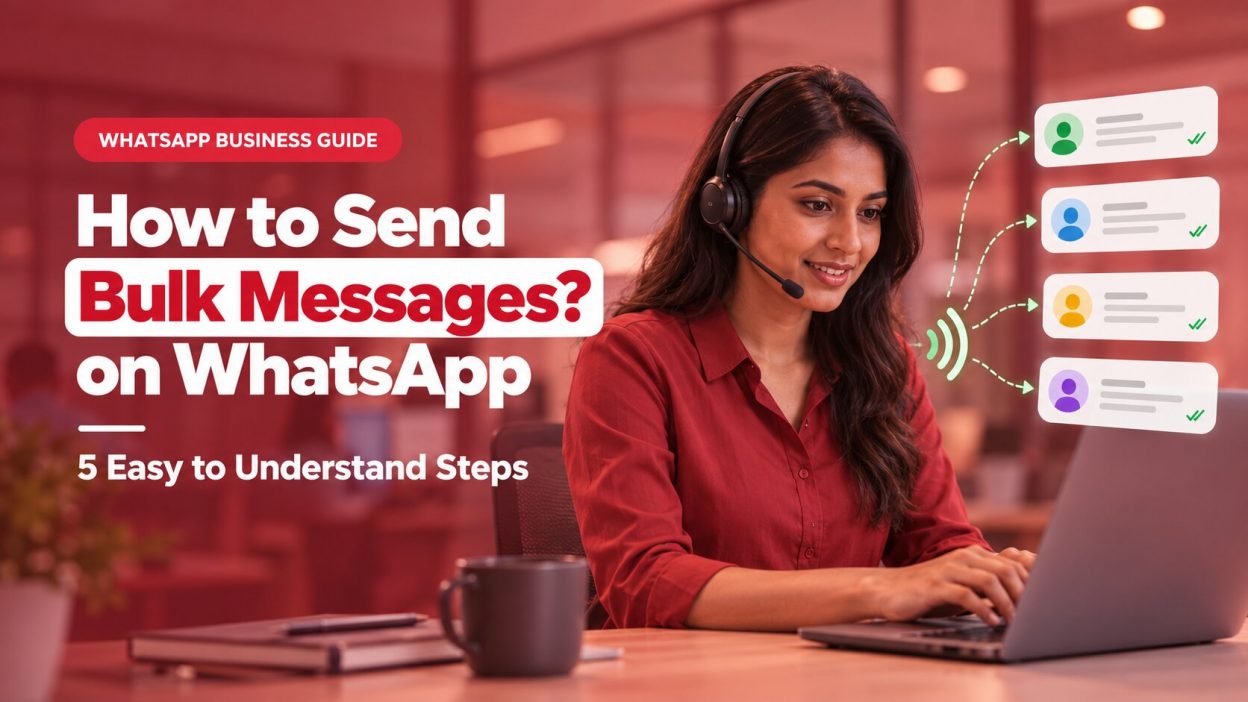
Have a customer update to share with dozens of people? Sending it one contact at a time takes longer and makes it easier to miss someone. WhatsApp’s broadcast feature lets you send one message to multiple customers, with each person receiving it in a private chat.
To send your first broadcast, open WhatsApp Business, create a list, select up to 256 contacts, write your message and tap Send. Standard broadcasts reach only customers who have saved your business number. This guide walks you through the steps and explains what to use when you need to reach a larger audience.
For a broader overview, read CallerDesk’s guide to broadcast messaging and how it works.
How to Send Bulk Messages on WhatsApp Business
1. Get Permission Before You Message Customers
First, ask customers if they want to receive messages from your business on WhatsApp. Tell them what they are signing up for, such as order updates, appointment reminders or promotional offers.
Save their permission and remove anyone who asks you to stop. WhatsApp’s Business Messaging Policy requires businesses to get opt-in permission and honour opt-out requests.
2. Save Customers’ Numbers
Add each opted-in customer’s number to your phone contacts. For a standard broadcast to reach someone, that person must also save your business number in their contacts.
That means having a customer’s number from an old enquiry or a public directory is not enough. They should agree to receive your messages and save your number.
3. Create a Broadcast List
Open WhatsApp Business and look for the broadcast option. The menu can vary slightly by phone and app version. WhatsApp’s Business app broadcast guide provides the current instructions.
- On Android: Open Chats, tap the three-dot menu and choose New broadcast, Broadcast lists or Business broadcast.
- On iPhone: Open Chats or Settings/profile, tap Broadcast messages or Broadcast Lists, then choose New List.
Select the customers who should receive the same update and create the list. A standard list can include up to 256 contacts. See the WhatsApp broadcast-list requirements for the latest details.
4. Write a Message Customers Can Act On
Keep the message short. Tell customers why you are contacting them and what they should do next. Before sending, check every date, price, offer condition and link.
For example:
Hi [Name], the [Product/Service] you asked about is now available. See the details here: [link]. Reply if you have a question. Reply STOP if you no longer want WhatsApp updates from us.
Send a test message to yourself or a colleague first. This helps you catch a broken link or a mistake before the message reaches customers.
5. Send the Broadcast and Reply to Customers
Open your broadcast list, type the message and tap Send. Each customer receives it as a separate chat. They cannot see who else received it, and their reply goes only to your business.
Check your chats after sending. If customers ask questions or request help, reply to them directly.
Why Is My WhatsApp Broadcast Not Reaching Everyone?
If a customer says they did not receive your message, check these possible reasons:
1. The Customer Has Not Saved Your Business Number
Standard broadcast messages reach only people who have added your business number to their phone contacts. Ask the customer to save your number before sending the broadcast again.
2. The Phone Number Is Incorrect or Inactive
Check the customer’s number and country code. A wrong or inactive number will prevent the message from reaching them.
3. The Customer Is Not on the Broadcast List
Open the broadcast list information and check its recipients. Add the customer to the list if they have opted in and meet the broadcast requirements.
4. A Broadcast Limit or Feature Restriction Applies
WhatsApp may show a monthly broadcast limit to some users as it rolls out changes in certain countries. Check the limit in your app and the current broadcast-list guidance. Do not create extra lists to get around a limit shown in the app.
5. The Customer Has Opted Out
Remove anyone who asks you to stop messaging them. Do not add them to another list or send them a future broadcast unless they give permission again.
How Can I Send a Message to More Than 256 Customers?
If customers have opted in and saved your business number, you can organise them into separate standard lists of up to 256 contacts each.
For a larger campaign, check if your app has Business broadcasts or Marketing messages. These paid features may let you choose a wider audience, add media or action buttons, and schedule a message. Availability and price depend on your account and location. Review WhatsApp’s Business broadcast pricing information and the price shown in your app before sending.
If your business needs regular high-volume messaging, automation or CRM integration, consider the WhatsApp Business Platform. Business-initiated messages outside the 24-hour customer service window need approved templates under the WhatsApp Business Messaging Policy.
See CallerDesk’s WhatsApp Business message template examples for sample copy. Before planning your budget, check Meta’s current Platform pricing and CallerDesk’s guide to WhatsApp Business API pricing in India.
WhatsApp Bulk Messaging: Common Questions
WhatsApp Bulk Messaging: Common Questions
1. Can I send a broadcast to people who have not saved my number?
Not with a standard broadcast list. Customers must save your business number. Some accounts may have paid Business broadcasts or Marketing messages with different audience options, but you still need permission to message each person.
2. Can customers see one another in a broadcast?
No. Each person gets the message in a private chat. Their replies are visible only to your business.
3. Is bulk messaging on WhatsApp free?
Standard broadcast lists are an in-app feature; see WhatsApp’s broadcast-list requirements. Business broadcasts or Marketing messages are paid where available. Check WhatsApp’s Business broadcast pricing for details. WhatsApp Business Platform messages may include Meta charges and additional provider fees, so review Meta’s current Platform pricing and CallerDesk’s WhatsApp Business API pricing guide for India before sending.
4. Can I send standard broadcast messages from WhatsApp Web?
No. The WhatsApp Help Center says standard broadcast lists are not supported on WhatsApp Web, Windows or Mac. Use the app on your phone, and check whether a separate Business broadcasts feature is available to your account.
5. How Many People Can I Add to One WhatsApp Broadcast List?
A standard broadcast list can include up to 256 contacts. Some users may also see a monthly broadcast limit as WhatsApp rolls out changes in certain countries. Check the limit shown in your app and the latest broadcast-list guidance.
6. What Is the Difference Between a WhatsApp Broadcast and a Group?
A broadcast sends the same message to people as separate private chats. Recipients do not see one another, and each reply comes only to your business. In a group, participants share one conversation and can see the other members and messages.
7. Can I Schedule a WhatsApp Bulk Message?
Standard broadcast lists may not include a scheduling option. Some accounts have access to Marketing messages or Business broadcasts, which may let you schedule a message. Check the feature options in your app; availability varies by account and location. See WhatsApp’s guide to creating and scheduling a marketing message.
8. Do I Need Permission Before Sending Bulk Messages on WhatsApp?
Yes. WhatsApp requires businesses to get opt-in permission before contacting people and to honour requests to stop receiving messages. Review the WhatsApp Business Messaging Policy and keep a record of customer preferences.
9. Can I Send Bulk Messages Through the WhatsApp Business API?
Yes. The WhatsApp Business Platform supports business messaging at scale and can connect with CRM or customer-support tools. You still need customer opt-in, and business-initiated messages outside the 24-hour customer service window must use approved templates. Check Meta’s current pricing before choosing this option.
Conclusion
WhatsApp bulk messaging can save your team time, but sending more messages is not the goal. The goal is to reach the right customers with an update they expect and can act on. For a small audience, use a standard broadcast list, select up to 256 opted-in contacts, and make sure they have saved your business number. If you need broader reach, check whether paid Business broadcasts are available in your app. For regular campaigns, automation or CRM workflows, consider the WhatsApp Business Platform and review its current pricing first. After every send, check replies and opt-outs. Use that feedback to improve your next message and keep your communication useful.